Box-select several room corners and move them together
Use the rectangular selection tool in the 2D plan to select several corners of the active room. Add with Shift, then move the group by dragging a selected corner or using the arrow keys.
Try rectangular selection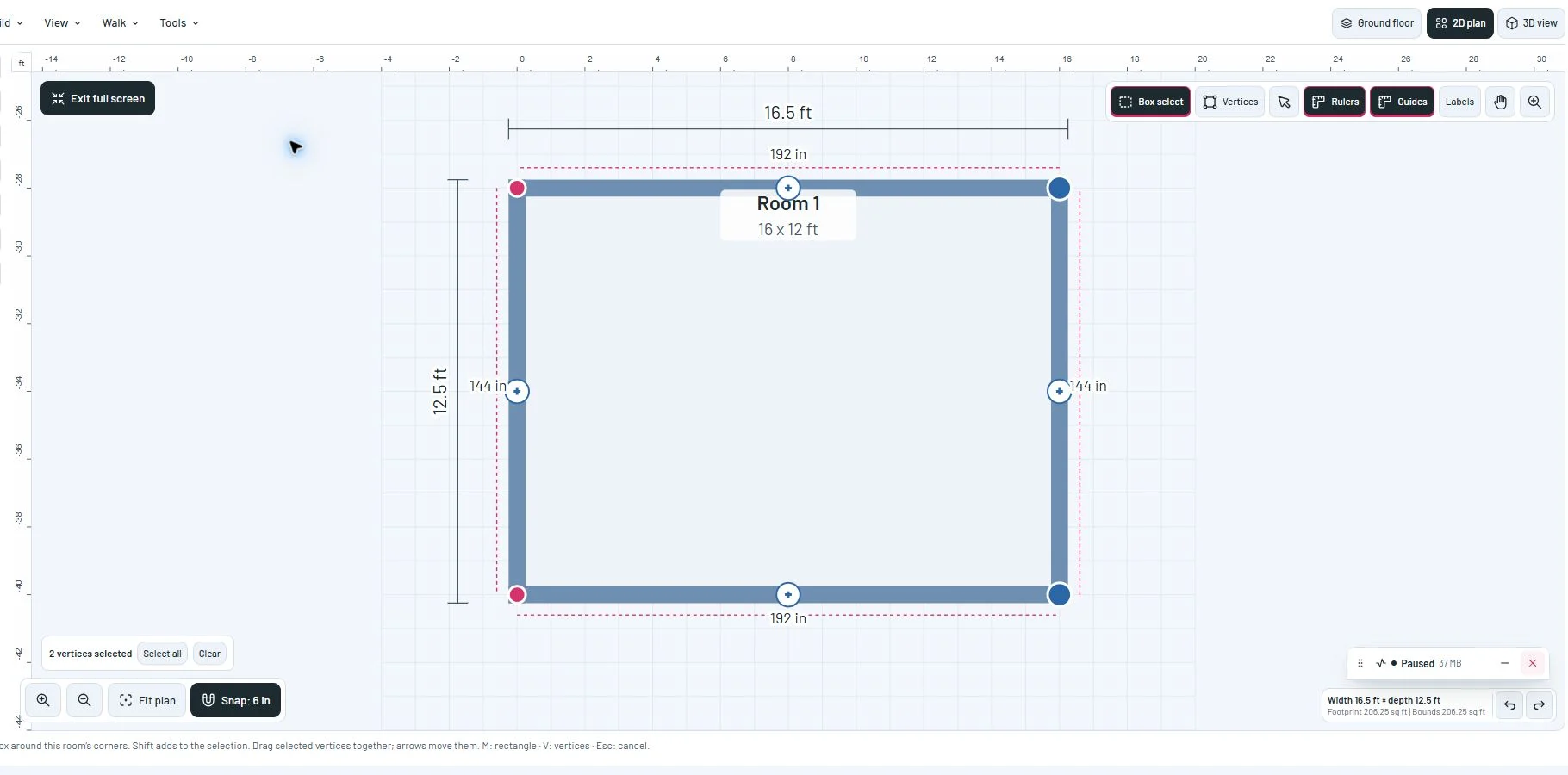
Select the corners you need
Drag a rectangle in either direction. A new box replaces the selection; hold Shift to add corners. Shift-click a corner to add or remove it, use Select all for the active room, or Clear to start again. The counter shows how many corners are selected.
Selection stays within the active room. The box follows the pointer without grid snapping, including corners on its edge. On a phone, find Box select in the Plan controls drawer.
Move the group and keep Undo
Drag one of the selected corners to move the group, or use arrow keys with Shift for smaller adjustments. Orthogonal rooms retain their wall alignment and the existing geometry checks.
Selecting corners does not change your drawing. A completed drag is one edit that Undo can reverse. Escape during a drag cancels the gesture without leaving full screen.
This milestone was documented on October 23, 2026 and added to the public history on October 23, 2026 at 11:07 PM GMT-3. Screenshots show the development state at the time. About this alpha history.